OpenCV学习 (English Version)
Read, Display and Write an Image
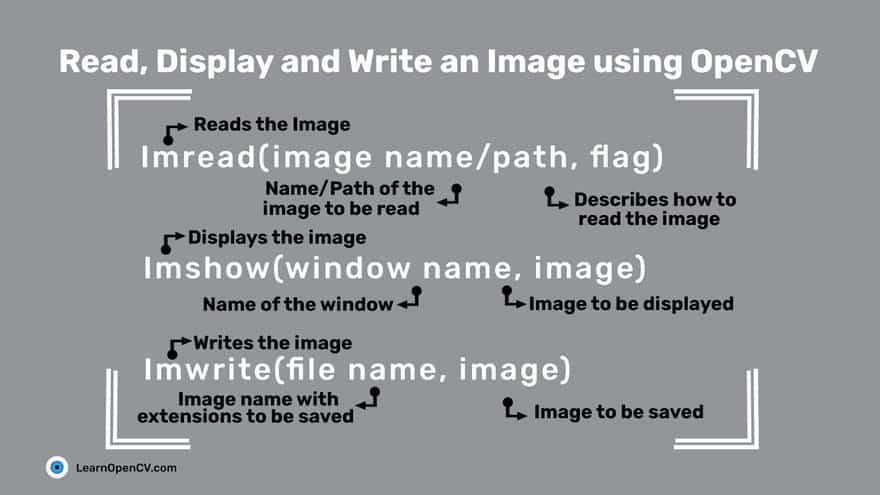
cv2.IMREAD_UNCHANGEDor-1cv2.IMREAD_GRAYSCALEor0cv2.IMREAD_COLORor1
import cv2img_grayscale = cv2.imread('test.jpg',0)
img_color = cv2.imread('test.jpg',cv2.IMREAD_COLOR)img_grayscale = cv2.imread('test.jpg',cv2.IMREAD_GRAYSCALE)img_unchanged = cv2.imread('test.jpg',cv2.IMREAD_UNCHANGED)
cv2.imshow('color image',img_color)cv2.imshow('grayscale image',img_grayscale)cv2.imshow('unchanged image',img_unchanged)
cv2.imwrite('grayscale.jpg',img_grayscale)Reading and Writing Videos
reading
From a file
import cv2
vid_capture = cv2.VideoCapture('1.mp4')
if vid_capture.isOpened() == False: print("Error opening the video file")else: # You can replace 5 with CAP_PROP_FPS as well, they are enumerations fps = vid_capture.get(5) print('Frames per second : ', fps, 'FPS')
# You can replace 7 with CAP_PROP_FRAME_COUNT as well, they are enumerations frame_count = vid_capture.get(7) print('Frame count : ', frame_count)
while (vid_capture.isOpened()): # vid_capture.read() methods returns a tuple, first element is a bool # and the second is frame ret, frame = vid_capture.read() if ret == True: cv2.imshow('Frame', frame) # 20 is in milliseconds, try to increase the value, say 50 and observe key = cv2.waitKey(20)
if key == ord('q'): break else: break
vid_capture.release()cv2.destroyAllWindows()cv2.VideoCapture– Creates a video capture object, which would help stream or display the video.cv2.VideoWriter– Saves the output video to a directory.- In addition, we also discuss other needed functions such as
cv2.imshow(),cv2.waitKey()and theget()method which is used to read the video metadata such as frame height, width, fps etc.
-
get()cv2.VideoCapture.get(0) 视频文件的当前位置(播放)以毫秒为单位 cv2.VideoCapture.get(1) 基于以0开始的被捕获或解码的帧索引 cv2.VideoCapture.get(2) 视频文件的相对位置(播放):0=电影开始,1=影片的结尾。 cv2.VideoCapture.get(3) 在视频流的帧的宽度 cv2.VideoCapture.get(4) 在视频流的帧的高度 cv2.VideoCapture.get(5) 帧速率 cv2.VideoCapture.get(7) 视频文件中的帧数
From Image-sequence
vid_capture = cv2.VideoCapture('Resources/Image_sequence/Cars%04d.jpg')
# e.g. Cars0001.jpg, Cars0002.jpg, Cars0003.jpg, etcFrom a webcam
vid_capture = cv2.VideoCapture(0, cv2.CAP_DSHOW)You might be wondering about the flag CAP_DSHOW. This is an optional argument, and is therefore not required. is just another video-capture API preference, which is short for directshow via video input.CAP_DSHOW
writing
-
step
-
Retrieve the image frame height and width, using the method.
get()# Obtain frame size information using get() methodframe_width = int(vid_capture.get(3))frame_height = int(vid_capture.get(4))frame_size = (frame_width,frame_height)fps = 20 -
Initialize a video capture object (as discussed in the previous sections), to read the video stream into memory, using any of the sources previously described.
-
Create a video writer object.
output = cv2.VideoWriter('Resources/output_video_from_file.avi', cv2.VideoWriter_fourcc('M','J','P','G'), 20, frame_size)-
filename: pathname for the output video file
-
apiPreference: API backends identifier
-
fourcc: 4-character code of codec, used to compress the frames (fourcc)
AVI:
cv2.VideoWriter_fourcc('M','J','P','G')MP4:
cv2.VideoWriter_fourcc(*'XVID') -
fps: Frame rate of the created video stream
-
frame_size: Size of the video frames
-
isColor: If not zero, the encoder will expect and encode color frames. Else it will work with grayscale frames (the flag is currently supported on Windows only).
-
-
Use the video writer object to save the video stream to disk.
while(vid_capture.isOpened()):ret, frame = vid_capture.read()if ret == True:output.write(frame)else:print('Stream disconnected')breakvid_capture.release()output.release()
-
Errors
reading
While reading frames it can throw an error if the path is wrong or the file is corrupted or frame is missing.
writing
- Most common are frame size error and api preference error.
- If the frame size is not similar to the video, then even though we get a video file at the output directory, it will be blank.
- If you are using the NumPy shape method to retrieve frame size, remember to reverse the output as OpenCV will return height x width x channels.
- If it is throwing an api preference error, we might need to pass the
CAP_ANYflag in theVideoCapture()argument. It can be seen in the webcam example, where we are usingCAP_DHOWto avoid warnings being generated.
Resizing
When resizing an image:
- It is important to keep in mind the original aspect ratio of the image (i.e. width by height), if you want to maintain the same in the resized image too.
- Reducing the size of an image will require resampling of the pixels.
- Increasing the size of an image requires reconstruction of the image. This means you need to interpolate(插值) new pixels.
Width and Height
import cv2import numpy as np
image = cv2.imread('img/000.png')cv2.imshow('Original Image', image)
# (width, height)resized_down = cv2.resize(image, (400, 300), interpolation= cv2.INTER_LINEAR)resized_up = cv2.resize(image, (1200, 900), interpolation= cv2.INTER_LINEAR)
h,w,c = image.shape# tuple: (height, width, channel)print("Original Height and Width:", h,"x", w)
cv2.imshow('Resized Down', resized_down)cv2.waitKey()cv2.imshow('Resized Up', resized_up)cv2.waitKey()cv2.destroyAllWindows()Scaling factor
scaled_f_up = cv2.resize(image, None, fx = 1.2, fy = 1.2, interpolation = cv2.INTER_LINEAR)
scaled_f_down = cv2.resize(image, None, fx = 0.6, fy= 0.6, interpolation = cv2.INTER_LINEAR)Interpolation Methods
INTER_AREA:INTER_AREAuses pixel area relation for resampling. This is best suited for reducing the size of an image (shrinking). When used for zooming into the image, it uses theINTER_NEARESTmethod.INTER_CUBIC: This uses bicubic interpolation for resizing the image. While resizing and interpolating new pixels, this method acts on the 4×4 neighboring pixels of the image. It then takes the weights average of the 16 pixels to create the new interpolated pixel.INTER_LINEAR: This method is somewhat similar to theINTER_CUBICinterpolation. But unlikeINTER_CUBIC, this uses 2×2 neighboring pixels to get the weighted average for the interpolated pixel.INTER_NEAREST: TheINTER_NEARESTmethod uses the nearest neighbor concept for interpolation. This is one of the simplest methods, using only one neighboring pixel from the image for interpolation.
res_inter_nearest = cv2.resize(image, None, fx= scale_down, fy= scale_down, interpolation= cv2.INTER_NEAREST)res_inter_linear = cv2.resize(image, None, fx= scale_down, fy= scale_down, interpolation= cv2.INTER_LINEAR)res_inter_area = cv2.resize(image, None, fx= scale_down, fy= scale_down, interpolation= cv2.INTER_AREA)
vertical= np.concatenate((res_inter_nearest, res_inter_linear, res_inter_area), axis = 0)cv2.imshow('Inter Nearest :: Inter Linear :: Inter Area', vertical)Cropping
Basic Cropping
import cv2import numpy as np
img = cv2.imread('img/000.png')#(h = 480, h = 640, c = 3)cropped_image = img[80:280, 150:330]#cropped = img[h = start_row:end_row, w = start_col:end_col]
cv2.imshow("original", img)cv2.imshow("cropped", cropped_image)
cv2.imwrite("Cropped Image.jpg", cropped_image)
cv2.waitKey(0)cv2.destroyAllWindows()Dividing Into Small Patches
import cv2import numpy as np
img = cv2.imread('img/000.png')
image_copy = img.copy()imgheight=img.shape[0]imgwidth=img.shape[1]
M = 160N = 160x1 = 0y1 = 0
for y in range(0, imgheight, M): for x in range(0, imgwidth, N): if (imgheight - y) < M or (imgwidth - x) < N: break
y1 = y + M x1 = x + N
# check whether the patch width or height exceeds the image width or height if x1 >= imgwidth and y1 >= imgheight: x1 = imgwidth - 1 y1 = imgheight - 1 # Crop into patches of size MxN tiles = image_copy[y:y + M, x:x + N] # Save each patch into file directory cv2.imwrite('saved_patches/' + 'tile' + str(x) + '_' + str(y) + '.jpg', tiles) cv2.rectangle(img, (x, y), (x1, y1), (0, 255, 0), 1)
elif y1 >= imgheight: # when patch height exceeds the image height y1 = imgheight - 1 # Crop into patches of size MxN tiles = image_copy[y:y + M, x:x + N] # Save each patch into file directory cv2.imwrite('saved_patches/' + 'tile' + str(x) + '_' + str(y) + '.jpg', tiles) cv2.rectangle(img, (x, y), (x1, y1), (0, 255, 0), 1)
elif x1 >= imgwidth: # when patch width exceeds the image width x1 = imgwidth - 1 # Crop into patches of size MxN tiles = image_copy[y:y + M, x:x + N] # Save each patch into file directory cv2.imwrite('saved_patches/' + 'tile' + str(x) + '_' + str(y) + '.jpg', tiles) cv2.rectangle(img, (x, y), (x1, y1), (0, 255, 0), 1)
else: # Crop into patches of size MxN tiles = image_copy[y:y + M, x:x + N] # Save each patch into file directory cv2.imwrite('saved_patches/' + 'tile' + str(x) + '_' + str(y) + '.jpg', tiles) cv2.rectangle(img, (x, y), (x1, y1), (0, 255, 0), 1)
#Save full image into file directorycv2.imshow("Patched Image",img)cv2.imwrite("patched.jpg",img)
cv2.waitKey()cv2.destroyAllWindows()Rotation and Translation
Rotation
import cv2
image = cv2.imread('img/000.png')
height, width, _ = image.shapecenter = (width/2, height/2)
rotate_matrix = cv2.getRotationMatrix2D(center=center, angle=45, scale=0.5)rotated_image = cv2.warpAffine(src=image, M=rotate_matrix, dsize=(int(width*0.9), int(height*0.9)))
cv2.imshow('Original image', image)cv2.imshow('Rotated image', rotated_image)
cv2.waitKey(0)cv2.imwrite('rotated_image.jpg', rotated_image)The getRotationMatrix2D() function takes the following arguments:
center: the center of rotation for the input imageangle: the angle of rotation in degreesscale: an isotropic scale factor which scales the image up or down according to the value provided
The following are the arguments of warpAffine() function:
src: the source mageM: the transformation matrixdsize: size of the output imagedst: the output imageflags: combination of interpolation methods such as INTER_LINEAR or INTER_NEARESTborderMode: the pixel extrapolation methodborderValue: the value to be used in case of a constant border, has a default value of 0
需要注意的是图像宽高一定为整数,因此dsize要加上int()将值改为整数,保证类型正确,否则将会出现如下错误。
cv2.error: OpenCV(4.6.0) :-1: error: (-5:Bad argument) in function 'warpAffine'> Overload resolution failed:> - Can't parse 'dsize'. Sequence item with index 0 has a wrong type> - Can't parse 'dsize'. Sequence item with index 0 has a wrong typeTranslation
Translation (平移)
import cv2import numpy as np
image = cv2.imread('img/000.png')
height, width, _ = image.shapecenter = (width/2, height/2)
tx, ty = width / 4, height / 4
translation_matrix = np.array([ [1, 0, tx], [0, 1, ty]], dtype=np.float32)
translated_image = cv2.warpAffine(src=image, M=translation_matrix, dsize=(width, height))
cv2.imshow('Original image', image)cv2.imshow('Translated image', translated_image)cv2.waitKey(0)cv2.imwrite('translated_image.jpg', translated_image)Annotating
Color Line
imageLine = img.copy()
pointA = (200,80)pointB = (450,80)cv2.line(imageLine, pointA, pointB, (255, 255, 0), thickness=3)
cv2.imshow('Image Line', imageLine)cv2.waitKey(0)point(x, y):
- The x-axis represents the horizontal direction or the columns of the image.
- The y-axis represents the vertical direction or the rows of the image.
所以上面画的是水平线
Outlined Circle
imageCircle = img.copy()
circle_center = (415,190)radius =100cv2.circle(imageCircle, circle_center, radius, (0, 0, 255), thickness=3, lineType=cv2.LINE_AA)
cv2.imshow("Image Circle",imageCircle)cv2.waitKey(0)这个linetype参数并不是指线型是实线、虚线还是点画线,这个参数实际用途是改变线的产生算法。
Filled Circle
cv2.circle(..., thickness=-1, ...)Rectangles
In the rectangle() function, you provide the starting point (top left) and ending point (bottom right) for the corners of the rectangle.
imageRectangle = img.copy()
start_point =(300,115)end_point =(475,225)
cv2.rectangle(imageRectangle, start_point, end_point, (0, 0, 255), thickness= 3, lineType=cv2.LINE_8)
cv2.imshow('imageRectangle', imageRectangle)cv2.waitKey(0)Ellipses
pass
Half-Ellipses
pass
Text
imageText = img.copy()
text = 'I am a Happy dog!'org = (50,350)# write the text on the input imagecv2.putText(imageText, text, org, fontFace = cv2.FONT_HERSHEY_COMPLEX, fontScale = 1.5, color = (250,225,100))# display the output image with text over itcv2.imshow("Image Text",imageText)cv2.waitKey(0)cv2.destroyAllWindows()org specifies the starting location for the top left corner of the text string.
OpenCV supports several font-face styles from the Hershey font collection, and an italic font as well.
Color spaces
RGB Color Space
The RGB colorspace has the following properties
- It is an additive colorspace where colors are obtained by a linear combination of Red, Green, and Blue values.
- The three channels are correlated by the amount of light hitting the surface.
the inherent problems associated with the RGB Color space:
- significant perceptual non-uniformity.
- mixing of chrominance ( Color related information ) and luminance ( Intensity related information ) data.
LAB Color-Space
- L – Lightness ( Intensity ).
- a – color component ranging from Green to Magenta(洋红色).
- b – color component ranging from Blue to Yellow.
properties
- Perceptually uniform color space which approximates how we perceive color.
- Independent of device ( capturing or displaying ).
- Used extensively in Adobe Photoshop.
- Is related to the RGB color space by a complex transformation equation.
img = cv2.imread('cube1.jpg')imgLAB = cv2.cvtColor(img, cv2.COLOR_BGR2LAB)YCrCb Color-Space
pass
HSV Color Space
- H – Hue 色相 ( Dominant Wavelength ).
- S – Saturation 色相 ( Purity / shades of the color ).
- V – Value ( Intensity ).
img = cv2.imread('cube1.jpg')imgLAB = cv2.cvtColor(img, cv2.COLOR_BGR2HSV)- There is drastic difference between the values of the red piece of outdoor and Indoor image. This is because Hue is represented as a circle and red is at the starting angle. So, it may take values between [300, 360] and again [0, 60].
segmentation
simplest way
Data Analysis for a Better Solution
Filtering
Image Filtering Using Convolution in OpenCV | LearnOpenCV #
pass
Thresholding
Binary Thresholding
Binary Thresholding ( THRESH_BINARY )
# Binary Thresholdif src(x,y) > thresh dst(x,y) = maxValueelse dst(x,y) = 0
# ---------------import cv2
src = cv2.imread("threshold.png", cv2.IMREAD_GRAYSCALE)
# Set threshold and maxValuethresh = 0maxValue = 255
# Basic threshold exampleth, dst = cv2.threshold(src, thresh, maxValue, cv2.THRESH_BINARY);Inverse-Binary Thresholding
Inverse-Binary Thresholding ( THRESH_BINARY_INV )
# Inverse Binary Thresholdif src(x,y) > thresh dst(x,y) = 0else dst(x,y) = maxValue
# ---------------th, dst = cv2.threshold(src, thresh, maxValue, cv2.THRESH_BINARY_INV);Truncate Thresholding
Truncate Thresholding ( THRESH_TRUNC )
# Truncate Thresholdif src(x,y) > thresh dst(x,y) = threshelse dst(x,y) = src(x,y)
# ---------------th, dst = cv2.threshold(src, thresh, maxValue, cv2.THRESH_TRUNC);Threshold to Zero
Threshold to Zero ( THRESH_TOZERO )
# Threshold to Zeroif src(x,y) > thresh dst(x,y) = src(x,y)else dst(x,y) = 0
# ---------------th, dst = cv2.threshold(src, thresh, maxValue, cv2.THRESH_TOZERO);Inverted Threshold to Zero
Inverted Threshold to Zero ( THRESH_TOZERO_INV )
# Inverted Threshold to Zeroif src(x,y) > thresh dst(x,y) = 0else dst(x,y) = src(x,y)
# ---------------th, dst = cv2.threshold(src, thresh, maxValue, cv2.THRESH_TOZERO_INV);Blob Detection
pass
Edge Detection
pass
Mouse and Trackbar
pass
Contour Detection
Simple Background Estimation
Deep Learning with OpenCV DNN
InputImg
Input.float().to(Device)
ValDataLoader
ValDataLoader = PipeDatasetLoader(FolderPath, 1)
ValDataLoader = DataLoader(ValDataset, batch_size=1, shuffle=False, drop_last=False, num_workers=0, pin_memory=True)
Comments